Key Takeaways
- WordPress user roles define what each user can see and do after logging in to the dashboard.
- Choosing the right role prevents accidental changes, security risks, and workflow delays.
- Default roles cover most needs, while custom roles solve specific access gaps that default roles cannot fill.
- Plugin roles like WooCommerce’s Shop Manager can quietly add more access than expected, always review before assigning.
- Regular role reviews keep access aligned with real responsibilities as teams change over time.
At some point, someone else needs access to your WordPress site. It usually starts with a small request. Then a client wants to fix a heading. Before you know it, more people are logging in than you planned.
Giving full access feels unsafe. Limiting access too much creates friction and delays work. Most site owners get stuck right here.
WordPress User roles are WordPress’ way of handling that tension. They control what each person can touch once they log in. When roles are set correctly, people can do their work without breaking anything important.
This article explains how WordPress user roles actually work. It shows what each role allows and where people often go wrong. By the end, assigning access will feel less like a guess and more like a decision.
- What Are WordPress User Roles And Capabilities?
- Default WordPress User Roles Quick Overview
- WordPress User Roles Comparison Table
- Default WordPress User Roles Explained
- Common User Roles Added By Popular WordPress Plugins
- How To Assign Or Change User Roles In WordPress
- When And Why You Should Create Custom User Roles
- How To Create, Edit, Or Delete WordPress User Roles
- Best Practices For Managing WordPress User Roles
- Best WordPress User Role Management Plugins
- Troubleshooting Common WordPress User Role Issues
- Summary
What Are WordPress User Roles and Capabilities?
A user role decides what someone can do after logging in to WordPress. The WordPress user roles system controls access to different parts of the dashboard so users only see what matters to them.
Each role is made up of smaller permissions called capabilities. A capability allows one specific action, such as publishing a post, editing content, or moderating comments. WordPress groups these capabilities together to form roles.
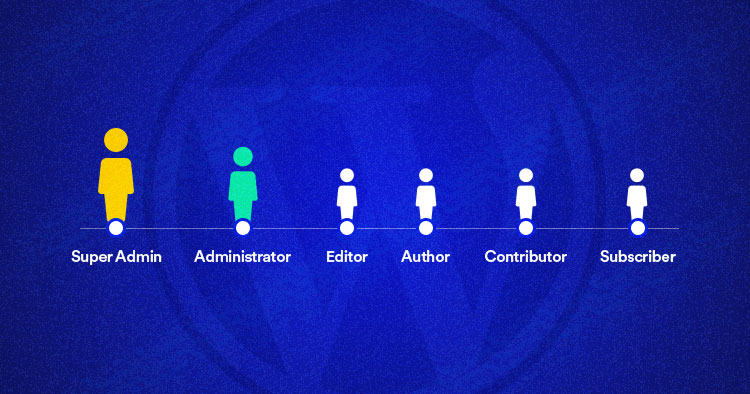
WordPress includes six default user roles. Each role is designed for a different type of responsibility, from full site control to read-only access.
Some roles have broad control, while others are intentionally limited. A Super Admin can manage everything in a multisite setup, while a Subscriber can only view content and manage their profile.
Roles can be adjusted when needed. Site owners often add or remove capabilities to better match real work. Developers can also create new roles, but most sites never need to go that far.
Why WordPress User Roles Matter for Security and Stability
WordPress user roles are not just a settings option in the dashboard. They quietly protect your site by preventing accidental changes, lowering security risks, and keeping day to day work running smoothly. When roles are mismanaged, things can break in ways that are hard to trace from missing permissions to unexpected site changes.
Default WordPress User Roles (Quick Overview)
WordPress comes with six default user roles. Each role fits a specific type of work. Picking the right one keeps your site organized and avoids unnecessary risk.
Here’s a quick look at what each role is meant for.
1) Super Admin
Available only on WordPress multisite setups. Controls the entire network, not just one site.
2) Administrator
Has full control over a single WordPress site. Can manage users, settings, plugins, themes, and content.
3) Editor
Manages content across the site. Can publish, edit, or delete posts and pages created by any user.
4) Author
Creates and publishes their own posts. Cannot change content written by others or access site settings.
5) Contributor
Writes posts but cannot publish them. Content must be reviewed and published by an Editor or Administrator.
6) Subscriber
Has the least access. Can log in, read content, and manage their own profile.
Each role exists for a reason. Giving someone more access than they need usually creates problems later. The next section breaks these roles down in more detail so you can choose confidently.
WordPress User Roles Comparison Table
Sometimes, descriptions are not enough. A side-by-side view makes the differences clear in seconds.
The table below shows what each role can and cannot do. Use it when deciding how much access to give someone.
| User Role | Publish Posts | Edit Others’ Content | Upload Media | Manage Plugins & Themes | Manage Users |
|---|---|---|---|---|---|
| Super Admin | Yes | Yes | Yes | Yes | Yes |
| Administrator | Yes | Yes | Yes | Yes | Yes |
| Editor | Yes | Yes | Yes | No | No |
| Author | Yes (own posts) | No | Yes | No | No |
| Contributor | No | No | No | No | No |
| Subscriber | No | No | No | No | No |
A few things stand out right away.
Editors control content but cannot touch site settings. Authors can publish, but only their own work. Contributors can write, but nothing goes live without approval.
Administrators and Super Admins should be assigned sparingly. Those roles can change things that affect the entire site.
Next, we’ll look at each default role in detail, with practical guidance on when to use them and when to avoid them.
Default WordPress User Roles Explained
Each role exists to solve a specific problem. Trouble usually starts when a role is used for the wrong job.
Super Admin
This role exists only on WordPress multisite networks. It controls every site in the network, not just one.
Super Admin access allows network-wide changes, including adding sites and managing plugins for all of them. Most site owners never need this level of control.
If your site does not use multisite, this role is irrelevant.
Administrator
This role has full control over a single WordPress site. Nothing important is off-limits.
Administrators can install plugins, change themes, edit settings, and manage users. A small mistake here can have wide effects.
Limit this role to people who truly need it.
Editor
Editors control all published content, not site settings. They can manage posts and pages written by any user.
Comment moderation, categories, and tags fall under this role. Plugins and themes do not.
Editors are a good fit for content leads.
Author
Authors work on their own posts only. They can write, edit, publish, and delete their content.
Media uploads are allowed, but access stops there. Other users’ content and site settings stay protected.
This role suits trusted writers.
Contributor
Contributors can write and edit drafts, but cannot publish content. Someone else must approve their work.
They also cannot upload images or files. That restriction helps prevent accidental issues.
This role works well for guest authors.
Subscriber
Subscribers have read-only access to the site. They can log in and manage their profile.
No editing or publishing options appear in the dashboard. Many membership sites rely on this role.
Subscriber access is often enough.
Common User Roles Added by Popular WordPress Plugins
Some WordPress plugins add their own user roles. These roles exist for one reason. They reduce the need to hand out full admin access.
If a site runs a store, a membership area, or online courses, plugin roles often become part of daily work. Sometimes they are helpful. Sometimes they quietly add more access than expected.
WooCommerce User Roles
WooCommerce adds roles built around store operations.
- Customer
Can place orders, view purchases, and manage account details. No dashboard access. - Shop Manager
Manages products, orders, coupons, and reports. Cannot change site-wide settings or manage users.
This separation keeps store tasks moving without risking the site itself.
Membership and LMS Plugin Roles
Membership and learning plugins focus on access control.
Members or students see only the content tied to their plan or enrollment. Access updates automatically when plans change.
Instructor or manager roles usually allow course creation and content updates. Site settings stay locked.
One role controls learning. Another protects the platform.
SEO and Marketing Plugin Roles
SEO plugins often introduce roles that sit between content and configuration.
- An SEO Editor can update titles, descriptions, and structured data on posts.
- An SEO Manager usually controls redirects, sitemaps, and indexing rules.
These roles are powerful. Assign them with intent.
Plugin roles are useful, but they can overlap with default WordPress roles. Always review what a role allows before assigning it. Extra access rarely helps.
How to Assign Or Change User Roles in WordPress
Managing user roles does not require technical knowledge. Everything happens inside the WordPress dashboard.
There are two common situations. Adding a new user, or changing the role of someone who already has access.
Assigning a Role to a New User
Use this when you are inviting someone for the first time.
- Log in to your WordPress dashboard.
- Go to Users and select Add New.
- Enter the user’s email and basic details.
- Choose a role from the dropdown menu.

- Click Add New User.
The role takes effect immediately after the user logs in.
Choose carefully. Changing roles later is easy, but starting with the right one avoids confusion.
Changing the Role of an Existing User
This is useful when responsibilities change.
- Go to Users and open All Users.
- Find the user and click Edit.
- Scroll to the Role field.
- Select a new role and save changes.
A Quick Tip Before You Move On
Always assign the lowest level of access needed to do the job. More permissions do not make work faster. They only increase risk.
When And Why You Should Create Custom User Roles
Most WordPress sites never need custom user roles. The default roles already cover common use cases.
Custom roles make sense only when responsibilities fall between existing roles. Giving extra permissions to the wrong role often causes more harm than creating a new one.
Signs The Default Roles Are Not Enough
You may need a custom role if any of these feel familiar:
- A user needs access to one feature, but nothing else
- Editors keep asking for permissions they should not have
- Clients accidentally change settings they should not see
- Plugin roles give either too much or too little access
Custom roles help solve these edge cases cleanly.
Examples Of Useful Custom Roles
Some roles show up often across different sites.
- Client Editor
Can update page content and images. Cannot touch layouts, plugins, or settings. - Store Support Staff
Can view orders and customer details. Cannot process refunds or edit products. - Content Reviewer
Can edit and approve posts. Cannot publish without review or manage categories.
Each role removes friction without opening new risks.
A Reality Check Before You Create One
Custom roles add control, but they also add responsibility. Every new role needs review, testing, and maintenance.
If a default role works with one small adjustment, that option is usually safer.
How to Create, Edit, or Delete WordPress User Roles
In this section, we’ll explore two easy methods to create, edit, or delete user roles in WordPress: using a WordPress plugin or taking the manual approach. These methods will help you easily manage user access and permissions on your WordPress site.
Method 1: Using A Plugin (Recommended)
Plugins make role management easier to understand. They show permissions in plain language and reduce the chance of mistakes.
A popular option is User Role Editor.
- Install and activate the User Role Editor plugin from the WordPress repository.
Once installed, you can:
- Create new user roles
- Copy existing roles
- Add or remove permissions
- Delete roles you no longer need
Changes take effect immediately, but they are easy to reverse.
This approach works well for client sites, content teams, and growing businesses.
How to Create a New User Role (Using a Plugin)
Use this when no default role fits the job.
- Open User Role Editor from the Users menu.
- Click Add Role.
- Enter a role ID and display name.
- Choose an existing role to copy permissions from.
- Save the new role and adjust permissions if needed.
Copying an existing role is safer than starting from scratch.
How to Delete a User Role (Using a Plugin)
Remove roles only if they are no longer in use.
- Click Delete Role.
- Select the role from the dropdown.
- Confirm the action by clicking the Delete Role button.
Always reassign users before deleting a role.
Client Role Management Made Simple
Safely grant client access while maintaining full control, our managed hosting keeps sites secure at every permission level.
Method 2: Manually Using Code (Advanced Users Only)
Manual role management gives full control. It also carries real risk.
Changes are usually made in the theme’s functions.php file or a custom plugin.
Creating A Role With Code
Use the add_role() function to define a new role and its permissions.
This method requires knowledge of WordPress capabilities and PHP. Testing in a staging environment is strongly recommended.
Editing Or Removing Capabilities
You can add or remove permissions using add_cap() and remove_cap().
Small mistakes can remove dashboard access or expose sensitive settings. Backups are essential.
Note: Role changes affect real users. Test first. Document what you change. Avoid experimenting on live sites.
Grow Your Team Without Slowing Down
Add unlimited users without performance worries, our servers scale automatically with your growing team.
Best Practices For Managing WordPress User Roles
Good role management is quiet. When it works, nobody notices it. Problems usually appear only after access has been too loose for too long.
Understanding how to assign default or custom WordPress user roles helps prevent mistakes, reduce friction, and keep workflows running smoothly.
A few simple habits prevent most issues.
1) Follow the Principle of Least Access
Always give users the minimum access needed to do their job. Extra permissions rarely help, but they often create risk.
If someone does not need a setting today, they should not have access to it.
2) Limit Administrator Access
Administrator access should be rare. One or two people is usually enough.
Too many admins increase the chance of accidental changes. They also make it harder to track who caused an issue.
3) Review Roles Regularly
Teams change. Responsibilities shift. Old accounts get forgotten.
Set a reminder to review user roles every few months. Remove access that is no longer needed.
4) Be Careful With Plugin Roles
Plugins can quietly add powerful roles. Some of them allow more access than expected.
Always check what a plugin role can do before assigning it to a real user.
5) Test Changes Before Going Live
Role changes apply instantly. There is no undo button.
If possible, test role updates on a staging site first. It saves time and avoids panic.
Following these practices keeps your site stable as more people get involved. Fewer surprises. Fewer emergencies.
Best WordPress User Role Management Plugins
Not every site needs a user role plugin. If the default roles work, adding more tools only adds complexity.
When you do need extra control, the right plugin makes a big difference.
1. User Role Editor
First in line is User Role Editor by Vladimir Garagulya, a widely-used plugin with over 700,000 active installations. Impressively, it has earned a stellar 4.6-star rating based on feedback from 283 users.
This plugin makes modifying user roles simple with an easy checkbox system. Users love its intuitive design for adding roles and customizing permissions effortlessly.
It’s worth noting that while this plugin is free, it also offers a premium plan with pricing starting from $29 for the Pro Personal subscription, which includes one year of access to new versions, downloads, and automatic updates for one live copy.
Other subscription plans, including Pro Business and Pro Unlimited, cater to varying needs with lifetime access options. Additionally, all subscription plans come with premium support, and there’s a 30-day money-back guarantee for added assurance.
Pricing:
- Pro Personal – $29 (1 year access, 1 live copy)
- Pro Business – $79 (1 year access, up to 5 copies)
- Pro Unlimited – $159 (1 year access, unlimited copies)
- Pro Personal Lifetime – $87 (Lifetime access, 1 live copy)
- Pro Business Lifetime – $198 (Lifetime access, up to 5 copies)
- Pro Unlimited Lifetime – $318 (Lifetime access, unlimited copies)
Downloads:
- 700,000+
Reviews:
2. PublishPress Capabilities
Next in line is PublishPress Capabilities, a powerful user role editor plugin designed to give you complete control over capabilities and permissions on your WordPress site. With over 100,000 active installations and a solid 4.7-star rating from satisfied users, this plugin offers an easy and efficient way to manage user roles.
This plugin allows you to fine-tune user roles, from Administrators to custom roles, ensuring each role has precise capabilities tailored to your site’s needs. Notably, PublishPress Capabilities simplifies the post editing screen, admin area, and Profile screen, giving you the flexibility to customize what authors see while writing posts.
For those seeking advanced features and faster support, there’s the option to upgrade to PublishPress Capabilities Pro. The Pro version takes it a step further, preventing users from accessing specific admin and frontend menu links.
Pricing:
- One Site – $69.00
- Five Sites – $129.00
- Unlimited Sites – $199.00
Downloads:
- 100,000+
Reviews:
3. Advanced Access Manager
On the 3rd spot is Advanced Access Manager (AAM), a WordPress plugin that empowers you with comprehensive control over your website’s aspects. Boasting over 100,000 active installations and a robust 4.2-star rating, AAM is a reliable solution with well-tested features.
AAM stands out as the only plugin offering absolute freedom to define granular access to every element of your website. It excels in managing access for roles, individual users, and visitors, even allowing configuration of default access for various content types.
AAM’s free version provides essential features such as backend menu management, role and capability control, and secure login options. Premium add-ons unlock even more capabilities, making AAM a versatile solution for user role management, content access, and website security.
Pricing:
- Basic – $99 / year
- Developer – $149 / year
Downloads:
- 100,000+
Reviews:
4. WP User Manager
Securing the 4th spot is WP User Manager, a robust WordPress plugin for creating customizable user profiles and managing community interactions. It simplifies user registration, login, password recovery, and account customization forms.
The premium version adds advanced features like custom fields, WooCommerce integration, enhanced Stripe functionality, user verification, group creation, and more. Free extensions, such as Newsletter and Username Length, offer additional functionalities.
The plugin supports translations and provides support through its forum and premium support platform. With 10,000+ installations, WP User Manager has an impressive 4.8-star rating on WordPress.
Pricing:
- Agency – $599 USD / year (1 year of support and updates for 25 websites)
- Pro – $299 USD / year (1 year of support and updates for 10 websites) – Most Popular
- Plus – $199 USD / year (1 year of support and updates for 5 websites)
- Starter – $149 USD / year
Downloads:
- 10,000+
Reviews:
5. User Registration
Last but not least, the User Registration – Custom Registration Form, Login Form, and User Profile WordPress Plugin offers a seamless solution for WordPress users seeking robust control over user roles.
This plugin stands out by allowing administrators to effortlessly assign default WordPress user roles, such as Editor, Author, Subscriber, and more, during the registration process. By providing this functionality, administrators gain the power to finely tune access levels across their websites, determining which sections users can access and the actions they can perform.
With features like email notifications, customizable user profile account pages, and advanced spam protection, the plugin provides a comprehensive solution for enhancing user registration and management on WordPress websites.
Pricing:
- ThemeGrill Agency – $299 / year (Save $966, Unlimited License)
- Professional – $399 / year (Save $100, 10 websites, additional features)
- Plus – $199 / year (Save $50, 5 websites, additional features)
- Personal – $79 / year (Save $20)
Downloads:
- 60,000+
Reviews:
A plugin should solve a problem, not create one. If role management feels harder after installation, it is usually the wrong tool.
Focus on Users, Not Servers
While you perfect user roles, we handle security patches, backups, and performance optimization automatically.
Troubleshooting Common WordPress User Role Issues
Permission issues in Default WordPress user roles often look like technical bugs. In reality, they usually come down to capability limits or role restrictions that were never intended for the task.
Knowing where to look saves time and frustration.
Why Can’t a User Upload Images?
This usually happens when the user is a Contributor. That role cannot upload media by design.
If image uploads are required, switch the user to Author or adjust the role using a plugin.
Why Is a Menu Option Missing From the Dashboard?
WordPress hides menu items based on permissions. If a user cannot see a menu, they do not have access to it.
Check the user’s role and confirm it includes the required capability. Plugins can also hide menus intentionally.
Why Can’t a User Publish Content?
Publishing rights depend on the role. Contributors can write drafts but cannot publish them.
Editors, Authors, and Administrators can publish. If publishing is blocked, the role needs review.
What if I’m Locked Out of an Admin Account?
This is rare, but it happens. A role change or plugin conflict is often the cause.
Access can usually be restored through the database or hosting control panel. This is one reason to keep at least one admin account untouched.
When Problems Keep Coming Back
Repeated role issues often point to unclear responsibility. Too many custom roles or plugins can make access hard to predict.
Simplifying roles usually fixes more than adding new ones.
Summary
The WordPress user roles system is what keeps a site stable as more people gain access. Managing WordPress user roles carefully determines who can change content, who can adjust settings, and who should only interact with what is already published.
Most problems start when roles are ignored or overused. Giving too much access creates risk. Giving too little slows work.
The default WordPress roles cover most needs. Custom roles and plugins are useful only when real gaps appear. When access is planned with intention, teams work faster and sites stay stable.
Managing user roles does not have to feel uncertain. With a clear setup and regular review, access becomes predictable instead of stressful.
Q. What Are the User Roles in WordPress?
A. WordPress includes six default user roles: Super Admin, Administrator, Editor, Author, Contributor, and Subscriber. Each role controls specific actions such as content creation, publishing, moderation, and site management based on a set of assigned capabilities.
Q. How Do I Create a User in WordPress?
A. Go to your WordPress dashboard, navigate to Users, then Add User, fill in the required details, assign a role from the dropdown menu, and click Add New User to complete the process.
Q. How Do I Set User Roles in WordPress?
A. You can assign user roles during account creation or later by editing a user’s profile under Users, then All Users. Select the desired role from the dropdown and save the changes.
Q. How Do I Manage User Roles in WordPress?
A. Go to Users, then All Users, select a user, click Edit, choose a new role from the dropdown, and click Update User. Plugins like User Role Editor allow for more advanced control, including modifying capabilities or creating entirely new roles.
Q. Can I Create Custom User Roles in WordPress?
A. Yes. You can create custom user roles using plugins like User Role Editor or by adding custom code via the add_role() function in your theme’s functions.php file. Plugins are the recommended approach for most sites as they reduce the risk of errors.
Q. What Is the Difference Between User Roles and User Permissions?
A. User roles are predefined sets of permissions grouped together and assigned to users. User permissions, also called capabilities, are the individual actions a role can perform, such as edit_posts or manage_options. Roles are made up of capabilities.
Q. Are There Plugins to Extend or Modify User Roles in WordPress?
A. Yes. Plugins like User Role Editor, PublishPress Capabilities, Advanced Access Manager, WP User Manager, and Members allow you to customize existing roles, create new ones, and manage capabilities without touching code.
Q. How Can I Track Changes Made by Different User Roles in WordPress?
A. Use activity log plugins such as Simple History, WP Activity Log, or User Activity Log to monitor edits, logins, role changes, and other user actions across your site.
Sarim Javaid
Sarim Javaid is a Sr. Content Marketing Manager at Cloudways, where his role involves shaping compelling narratives and strategic content. Skilled at crafting cohesive stories from a flurry of ideas, Sarim's writing is driven by curiosity and a deep fascination with Google's evolving algorithms. Beyond the professional sphere, he's a music and art admirer and an overly-excited person.