Key Takeaways
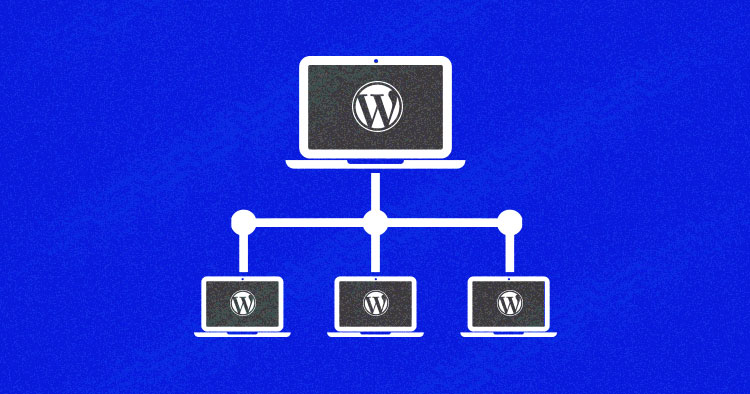
- WordPress Multisite (MU) allows managing multiple websites from a single dashboard efficiently.
- Each subsite has its own media upload folder, keeping images and files separate while sharing plugins and themes across the network
- It is ideal for organizations, universities, media houses, agencies, and multi-store ecommerce networks.
- Setting up Multisite requires choosing between subdomains and subdirectories and configuring wp-config.php and .htaccess files.
- Cloudways simplifies Multisite hosting, enabling scalable resources and centralized management for growing networks.
Whenever you want to create a network of local businesses with subsites for different owners, the only choice is WordPress Multisite(MU). The restriction here is that all the subsites will host on the same WordPress Multisite hosting provider. However, several tools, such as MainWP other popular plugins for WordPress Multisite (MU), can help you handle multiple WordPress sites, even if they are hosted on different providers.
Common perception says since one WordPress website is good, two or more should be far better. This perception is not necessarily accurate, especially when comparing WordPress Multisite vs multiple WordPress installations.
Interestingly, as the number of WordPress websites increases, management gets difficult. Just logging into multiple dashboards becomes a hassle regularly. Fortunately, WordPress Multisite setup, with clearly defined roles for super admins and site admins, provides a centralized way to manage multiple WordPress sites efficiently.
Today, I will discuss what a Multisite Network is, its practical use cases, and how to set up it properly, including WordPress domain mapping for different domains, subdomains, and subdirectories.
What Is WordPress Multisite?
Surprisingly, WordPress Multisite (MU) is not a new feature. It rolled out with WordPress 3.0. Initially, the functionality doesn’t receive a warm response because the user base of WordPress was not large enough. However, as WordPress gained popularity, the MU became a popular solution for managing multiple WordPress websites efficiently.
It is perhaps the first WordPress feature that created its niche, and many WordPress developers found Multisite a versatile function that formed the basis of many WordPress projects. Developers often combine this with a WordPress Multisite cache plugin to improve site speed across their network.
The WordPress Multisite, also known as WPMU, is a more suitable feature for websites with multiple subsites, subdomains, or entirely different domains, all managed from a single WordPress dashboard. Super Admin can easily give limited user access to user accounts without worrying about interference with the main website. This makes domain mapping and network management easier for agencies, developers, and businesses.
How Does WordPress Multisite Work?
With WordPress Multisite, you can manage hundreds of websites from a single location. The distribution is implemented as a network under a single domain. You can map different domains, subdomains, or subdirectories by adding code to the wp-config.php and WordPress .htaccess files.
For those looking for a WordPress multisite setup, this approach is ideal. You can choose between subdomain vs subdirectory structures depending on your project. The Super Admin manages network wide settings, while individual site admins handle their subsites. When using Cloudways WordPress Multisite hosting, setting up the network and managing network settings becomes much easier. Additionally, for subdomain networks, configuring a wildcard DNS ensures all subdomains route correctly.
From Launching to Managing WordPress Multisite has been Easier with Cloudways.
Whether you’re a beginner or an expert, Cloudways Platform is based on UI, where you can make changes in a few seconds.
Pros and Cons of WordPress Multisite
Pros
- It’s easy to manage WordPress websites having different domains/subdomains or client sites.
- It is ideal for local businesses with multiple subsites managed by different teams.
- Useful for businesses like banks with multiple branches, schools with distributed campuses, etc.
- Teams can work on their specific sites independently while the administrator controls them.
Cons
- Subsite administrators cannot install plugins and themes. Only Network administrators can add/remove plugins and themes on the subsites.
- Removing or migrating a site within the Multisite network is a real challenge.
- Custom changes in the network theme apply across the websites.
- Security issues on one site can jeopardize the entire Multisite network.
- The cost of the overall hosting of the Multisite setup could be high.
Needless to say, the advantages of WordPress multisite networks outweigh the disadvantages. You might have to deal with the technical intricacies of handling a WordPress multisite, but you can always hire a WordPress developer to resolve your technical issues.
Is WordPress Multisite Good for SEO?
WordPress Multisite can be SEO friendly if structured properly. Each site in the network can rank independently, particularly when using separate domains or subdomains. However, some factors may affect SEO performance across the network:
- Shared resources or slow server performance can impact all sites.
- Duplicate content between subsites can dilute search rankings.
- Poor network configuration can make indexing harder for search engines.
If your sites are unrelated, separate WordPress installations may perform better for SEO. But for related sites, like multiple branches of a business or a network of blogs, Multisite offers a centralized way to manage SEO while ensuring each site has its own visibility.
Multisite vs. Multiple WordPress Sites
One can easily create a single WordPress site that will be owned and controlled by an individual owner; however, one can create multiple WordPress users with limited or full access to maintain a single WordPress account.
In contrast, WordPress Multisite allows the creation of a network of multiple WordPress sites called subsites that will be fully controlled by the network administrator only. However, each subsite can have its own site owner, but again, he will only be able to do what the network admin permits. This setup is ideal for multi-site management across various domains or subdomains.
When to Use WordPress Multisite?
What if an individual (or an organization) has multiple WordPress sites or blogs? Management quickly becomes an issue because of the individual requirements of these websites. A developer or a web agency can install and manage the network of client sites from a central panel. An administrator can give access to clients to their site (if they wish or there is a real need for that).
The good thing is that WPMU has several practical uses that add significant value to businesses and organizations. Many developers and agencies running multiple WordPress sites also rely on essential tools and WordPress plugins favored by developers and agencies to simplify multisite management, improve performance, and maintain consistency across all projects. Here is a short description of a few real world business cases.
1. Education
Imagine a university that facilitates its teaching faculty, administrative staff, and students by providing department-level local websites within the main network. For example, the university can have a local portal for teachers where they can mark attendance, enter class schedules, and other information.
Similarly, the university could provide a student portal with the academic calendar, results, syllabus, resources (including ebooks), and related information. These two portals are independent of each other, with some intercepting points in places where students can interact with the respective teacher.
Moreover, the marketing department of universities can create hundreds of blogs and academic microsites without installing multiple copies of WordPress CMS. This is another independent portal that interacts with external audiences, along with students and teachers through the portal.
2. Media
Media houses, especially electronic media, can utilize WordPress Multisite for their news channels and e-papers for regional languages/audiences. A single WordPress dashboard can manage those local sites.
BBC America is an excellent example of Multisite in action. The website has a Multisite WordPress service, and each program has its website. Besides, media houses using Multisite can provide local sites for in-house departments, such as editorial, marketing, and archive departments.
3. Development Agencies
Development agencies can run all their subsites from a central location. In most cases, different domains/subdomains, such as example.com, abc.com, marketing.xxxxx.com, or support.xxxxx.com, can handle this. Each microsite updates independently without affecting the other websites on the network.
4. Ecommerce
If you have multiple WooCommerce-powered ecommerce stores, They should be controlled under a single administration. WPMU can manage the entire ecommerce network. The subsite owners have access to manage their particular store leaving all the administrative stuff to the network admin.
5. Hotels
Using the feature, multinational hotels can make regional websites that offer local information while the main site provides hospitality ethics codes, corporate news, and their portfolio.
Hotel owners can use WordPress to separate the internal and external management of the business processes.
For internal management purposes, the website administrator can keep records of housekeeping, staff roster, training, working shifts, etc. Similarly, for external management, the admin can keep a record of guests, customers, and their services.
When Is A Multisite Network Not Recommended?
One wonders, is it an appropriate solution for all multisite business scenarios? Like most solutions, there’s always a flip side of the coin. Multisite is not useful for the following situations:
- You won’t get the full benefit if you are not a network or an organization.
- If one of the subsites is vulnerable, there are chances that the entire Multisite network may be compromised.
- And if you are using shared hosting for the main website.
Use Cases of WordPress Multisite
As discussed earlier, Multisite can come in handy in several ways. Here are some examples of what Multisite looks like in a Real World. These should give you an idea of what kinds of businesses would benefit from it:
Streamline your WordPress Multisite management
Let Cloudways Experts take care of setup, optimization, and maintenance so you can focus on growing your business.
How to Set Up WordPress Multisite
The setup saves everyone a lot of time (particularly the admins) and eases the overall operations of website management.
Multisite Hosting
You may need more resources to set up a network if you already have a large and growing network. Our dos and don’ts of WordPress Multisite hosting guide can help you optimize your setup and avoid common pitfalls. In case of insufficient server resources, the number of user requests could result in crashing your hosting server. Therefore, we suggest installing WordPress Multisite on a specialized Multisite hosting provider that can scale up your server’s resources whenever required.
Install WordPress Multisite on Cloudways
Steps to Install WordPress Multisite on Cloudways:
-
Sign up for a 3-day free trial or log in to your Cloudways account.
-
From the dashboard, select WordPress Multisite from the drop-down menu when launching a new application.
-
Name your app, server, and project as per your requirements.
-
Choose a cloud infrastructure provider, such as DigitalOcean, AWS, or Google Cloud.
-
Select the server size based on your expected traffic and project scale.
-
Pick a data center location nearest to your target audience for better performance.
-
Click the “Launch Now” button to deploy your WordPress Multisite network.

Wait for a few minutes while your server launches with WPMU installed.
Once it launches, navigate to the Applications tab from the top menu bar, and then get into your Application → Access Details → Admin Panel for login credentials.
Enable WordPress Multisite
Now go to the WordPress Dashboard → Tools → Network Setup.
Now you have to choose between subdomains and sub-directories.
Install WordPress on Subdomains?
In general, sub.example.com is considered a subdomain. The search engines see subdomains as entirely different websites and not part of your main domain (example.com). Subdomains are useful if you want to create a network having different subsites that do not connect in one way or the other.
Install WordPress on Subdirectory?
Unlike subdomains, example.com/sub considers a subdirectory. The search engines see subdirectories as part of your main domain (example.com). Subdirectories are useful if you want to create a network of connected subsites, i.e., a system where each employee has his website and is part of the company.
You will also need to set the network title and network admin email. Be very sure about this step because you cannot change it later on.
Note: You may need to deactivate all the plugins to proceed further during the setup. In my example, I will use Multisite subdomains.
You may have to use any FTP solution, such as FileZilla, to back up and edit the wp-config.php and .htaccess files. Soon, you will get directions from the WordPress backend about code placement.
After adding the code to the files, you are done with the setup on the blazing-fast cloud hosting at Cloudways. Now, again log in to your WordPress admin panel.
Add Sites to the Network
From the top menu bar of the WordPress admin panel, navigate to My Sites → Network Admin → Sites.
Here you will find the default/main site of the network that we have launched previously. Click on the Add New button to add a new website to the network.
Fill in all the fields (Site address is the subdomain of your main domain).
You can add as many sites as you want by using the above add new button. Once again, get back to all sites by navigating from My Sites → Network Admin → Sites.
You can see that the list includes the domain(s)/subdomain(s) you added earlier.
WordPress Multisite Domain Mapping
Even if everything is correct, for some reason, you are still unable to access your website, it’s because your Multisite network isn’t recognized by the WordPress application installed on Cloudways.
To make it work, you need to do WordPress domain mapping by associating the domain name with your network.
Navigate to Domain Management of your application. Fill in the Primary Domain field and click Save Changes.
Log in to your domain registrar, and add TWO A records, one for the main domain and the other for all subdomains. The host should be @ and *, respectively, and the value should be the server IP address.
Note: To do WordPress domain mapping, you need to add an A record on your respective domain registrar; here is how to point your domain.
Once the DNS propagation is complete, get back to your Multisite admin dashboard. Navigate to My Sites → Network Admin → Sites.
All sites will be listed here with appropriate WordPress Multisite domains.
Add Subdomains
The next step is notifying the Multisite application about subdomains. Go back to the Cloudways Platform, navigate to the Domain Management tab of the respective app, and add the subdomain in Additional Domains.
Et Voila! You have done WordPress Multisite domain mapping. Now, visit your newly added WordPress website (subdomain).
Note: It will take a few minutes for everything to propagate correctly.
Add Different Domains
Using a single domain for all the subsites may not always be the situation with a network. Mapping a different domain name lets the subsite use its domain rather than the extension (something like site1.domain.com).
To map a different domain, log in to your WordPress Dashboard, and navigate to Site → All Sites.
Hover over a subsite, go to the Edit options, and replace the site URL with the domain. After that, click the Save Changes button.
Go back to the Cloudways Platform → Application Management. Navigate to Domain Management, and add the domain under the Additional Domains section. Click the Save Changes button, and point to the domain by visiting your domain registrar.
Multisite SSL Certificate
Popularity has its hazards, and so is the case with WordPress. It has now become the favorite target for hackers out to steal form submission data. Here it should be noted that this data can include user credentials and financial information such as credit card details.
We at Cloudways provide WordPress SSL certificates via Let’s Encrypt and paid SSL certificate providers to help secure the applications for our customers. Here is how you can set up and install SSL certificates to the WordPress Multisite network.
Add SSL Certificate to WPMU Sites
Once a Multisite network is installed and configured correctly, go to the application and map your primary domain under the Domain Management section if you have not pointed to the domain yet.
Once the primary domain is pointed and successfully propagated from the domain registrar, go ahead and add domains or subdomains of the other WordPress subsites in Additional Domains.
Since I’m using subdomains for my network, I will add an SSL certificate to subdomains. Go to the Domain Management tab, and under Additional Domain, I have added my network subdomains and click the Save Changes button. Make sure all the domains/subdomains have been propagated.
Now, navigate to the SSL Certificate tab, and follow the next steps to add an SSL certificate to the WordPress Multisite network and the subdomains.
Use Let’s Encrypt Wildcard for Subdomains
Back in January 2018, ‘Let’s Encrypt’ introduced its wildcard feature, which was promptly adopted by Cloudways. This feature lets users add SSL certificates to subdomains easily.
The wildcard is ideal for a network consisting of multiple subdomains as it eliminates the need for adding SSL certificates individually for each subdomain.
Once subdomains are added to the Domain Management tab, navigate to the SSL Certificate tab and check the box for a wildcard in front of the domain name field.
Note: If you already have an SSL certificate, you may need to Revoke it first.
Now add a new CNAME record to your domain registrar. For this guide, I added a CNAME record where the hostname is _acme-challenge and a value similar to my WordPress staging URL, as highlighted in the screenshot above.
Note that I am using Namecheap as the domain registrar in this example.
Verify DNS before installing the SSL Wildcard certificate. You can verify if the CNAME is propagated or not by using the online tool whatsmydns.
Copy the whole URL _acme-challenge.DOMAIN NAME inside the input field, select CNAME from the drop-down and run the test.
That’s it! Once the CNAME record has propagated successfully, SSL certificates will automatically apply to the subdomains.
SSL Certificate for Different Domains
To assign an SSL certificate to each subsite of the network, add all WordPress multisite domains to the SSL Certificate tab.
Please note that the Wildcard and SSL certificates on different domains will not work together. You can either choose Wildcard or WordPress for multiple domains.
However, if your network is a mix of WordPress’s multiple domains and subdomains, you must add each subdomain and the different domains separately in the list under the SSL Certificate tab.
This method will apply an SSL certificate to all the mentioned subdomains/domains in the list.
Change URLs to HTTPS
To change internal URLs, go to the network admin panel. Navigate to Settings → General. Change the WordPress Address and Site Address URL from HTTP to HTTPS. Hit the Save Changes button to save the new settings.
Identify Mixed Content
It is essential to ensure that all page URLs have the same protocol (preferably HTTPS). To find HTTP URLs, use an online tool by JitBit to check for non-SSL content.
Copy and paste your website URL(s) and begin the test. It will crawl your site and list all the URLs with the HTTP prefix.
Fixing them is easy with a plugin WP Migrate DB. Go to the Plugins → Add New, search for “WP Migrate DB” and install it. Once installed, go to plugin settings and click on the first tab, which says Migrate, and select Find & Replace.
Paste the old URLs inside the Find fields and new URLs with HTTPS in the Replace fields. Hit the Find & Replace button to start the process.
P.S. Before attempting to replace URLs, make sure to back up your WordPress site.
Auto Redirect from HTTP to HTTPS
It is essential to redirect your visitors automatically from HTTP to HTTPS addresses. Redirection also helps if your site uses backlinks from other sites that still use HTTP and are not updated by their website owners.
To do so, you must make a few adjustments to your WordPress .htaccess file.
Note: Altering the .htaccess file is risky; if things go wrong, it can damage your WordPress site. Do not forget to back up your .htaccess file before making any changes.
Now that you have backed up your .htaccess file, access it from your root directory and open it in the text editor of your choice. At the beginning of the document, add the following lines.
RewriteEngine On
RewriteCond %{HTTP:X-Forwarded-Proto} !https
RewriteRule ^(.*)$ https://%{HTTP_HOST}/$1 [R=301,L]
Your final .htaccess file should look something like this.
RewriteEngine On
RewriteCond %{HTTP:X-Forwarded-Proto} !https
RewriteRule ^(.*)$ https://%{HTTP_HOST}/$1 [R=301,L]

# BEGIN WordPress
RewriteEngine On
RewriteBase /
RewriteRule ^index\.php$ - [L]
RewriteCond %{REQUEST_FILENAME} !-f
RewriteCond %{REQUEST_FILENAME} !-d
RewriteRule . /index.php [L]
# END WordPress
Add HTTPS to Google Analytics
Google crawls your WordPress site to update its records of the structure and content of your website. At this point, Google does not know yet that the website is now on HTTPS.
Log in to your Google Analytics dashboard to track HTTPS links in Google Analytics. Inside the Admin area, locate your desired property and click on Property Settings.
From the drop-down menu, change the Default URL from HTTP to HTTPS.
Navigate back to the previous step and click on the View tab.
Here, you can find the Website’s URL drop-down. Select HTTPS from the list.
That’s it! Now Google will start tracking your new URLs with HTTPS.
Add SSL Certificate to Multisite Subdirectory
Note that the above guide was for subdomains only. If your WordPress Multisite network is subdirectory-based, you only need to add an SSL certificate for the primary (main) domain. There is no need to do additional work to add SSL for subdirectories of Multisite.
Must-Have Plugins
WaaS Pro plugins comprise a collection of WordPress plugins that help developers design better WordPress networks. The company behind the plugins, Blitz Industries, manages its own WaaS network that targets the Auto Care industry niche. In this process of developing their
WaaS, they discovered areas that they felt could make improvements for both the developer’s and end user’s experience.
“We have been developing and managing our network (WPMU) for the past couple of years and are excited about the technology growth available to us today. However, not everything integrates or works to our standards, so we’ve created solutions that we’ve turned into professional-grade plugins that can help perfect your WaaS network too.” – Michael Short
Let’s take a look at their nine plugins and how they can help improve your WaaS:
-
- Admin UI Pro – Reinvent your WordPress admin theme with a unique and custom look. You can modify everything from the primary logo, color scheme, header image, and so much more! The best part is that this plugin integrates with WP Ultimo to display menu items based on your customer’s plan level. And that’s not all! You can use this plugin on non-multisite too!
- Content Editor Pro – Make it easy for customers to edit their websites. Content Editor Pro is a solution for developers who need a simple tool that allows their customers to update and edit their websites without being techy. It also adds the convenience of switching between template designs without losing changes. Ultimately, it eliminates your customers’ need to access the page builder. They can update their content right from within their dashboard.
- Content Editor/ACF Add-ons for Elementor – This plugin provides eight new widgets that make it easy for you to bring user-generated content into your template pages. Every license of Content Editor Pro includes the Add-ons for Elementor.
- Rebrand/Control Pro for Elementor – Rebrand Elementor with your company name and logo, plus get granular control of the features that matter most! This plugin contains robust features guaranteed to help your site look 100% custom and relevant to your brand.
- Site Settings Pro – Make it easy for your WaaS customers to add their branding and colors to their template websites. Site Settings Pro enables your WaaS customers to add their company logo, contact info, fonts, and brand colors to their site from a simple form within their dashboard.
- WP Ultimo: CartFlows Integration – This plugin fuses WP Ultimo with CartFlows. When connected, these two platforms (combined with the WooSubscriptions plugin) will allow you to add and sell unlimited plans and upsells on your WaaS with virtually no effort.
- WP Ultimo: ThriveCart Integration – Now, you can take full advantage of all the features in ThriveCart on your WP Ultimo managed network! Add an unlimited number of WP Ultimo plans to your ThriveCart account. Create an affiliate network to help launch your product using ThriveCart’s built-in affiliate features.
Summary
The WordPress Multisite (WPMU) allows you to create scalable and extensive WordPress multisite networks to be managed from a single dashboard, making it easier to manage multiple WordPress sites efficiently.
As your network grows, you will need to scale up your Multisite hosting resources. We suggest opting for a scalable WordPress Multisite hosting solution. If you are a Cloudways customer, you can easily scale server resources with just one click, ensuring stable performance across your WordPress Multisite setup.
I hope the guide has given you clear ideas about what WordPress Multisite is, when to use WordPress Multisite, and how to incorporate WordPress multisite functionality into your organization or business. If you have any questions about WordPress multisite management or Cloudways WordPress Multisite hosting, expert support is always available to help you move forward confidently.
Frequently Asked Questions
Q1: Is WordPress Multisite free?
Yes, WordPress Multisite is a free feature included in the core WordPress software. You don’t need to pay extra to enable it. However, you will need to pay for hosting, domain names, and any premium plugins or themes used on your network.
Q2: Who uses WordPress Multisite?
WordPress Multisite is ideal for organizations and businesses that need to manage multiple websites from a single dashboard. Common users include:
- Agencies managing multiple client sites
- Universities with department-specific portals
- Media houses managing regional or topic-specific sites
- Ecommerce networks with multiple stores
- Multi-location businesses or franchises that need centralized control
Q3: Where can I get WordPress Multisite hosting with staging?
You can get Multisite hosting with one-click staging from managed WordPress hosts such as Cloudways. The platform fully supports multisite networks and provides a built-in staging tool for safe testing and deployment.
Q4: Does hosting with a staging environment cost extra for multisite users?
Many managed WordPress hosts include staging by default or offer it as an add-on. On Cloudways, staging is included in your hosting plan—no additional fee is required for the staging environment.
Q5: What should I look for in a multisite hosting plan if I need staging?
Look for:
- Full Multisite support
- Easy staging and cloning tools
- Scalable server resources
- Automatic backups
- Strong performance and uptime
Platforms like Cloudways simplify hosting and scaling WordPress Multisite networks efficiently.
Q6: Can I test updates on a staging site safely when using WordPress Multisite?
Yes, staging replicates your full multisite installation, allowing you to test plugin updates, theme changes, and domain mapping adjustments without affecting your live network.
Q7: Can I have 2 websites on WordPress?
Yes. Set up a WordPress Multisite network and add as many websites as you want under the same installation.
Q8: How do you create a multisite?
Edit your wp-config.php file and add:
define('WP_ALLOW_MULTISITE', true);
Then log in to your dashboard, go to Tools → Network Setup, and follow the steps.
Q9: How do I use WordPress Multisite?
After Multisite is enabled, open the Network Admin. From the top-left panel, go to Sites and add new sites as needed.
Q10: How do I install a subdomain on WordPress Multisite?
During setup, choose the subdomain option. This cannot be changed later, so choose carefully.
Q11: How can I tell if WordPress is Multisite?
View the page source. If media URLs include a site ID (e.g., /wp-content/uploads/sites/2/), it is a Multisite. If not, it’s a standard WordPress installation.
Mansoor Ahmed Khan
Been in content marketing since 2014, and I still get a kick out of creating stories that resonate with the target audience and drive results. At Cloudways by DigitalOcean (a leading cloud hosting company, btw!), I lead a dream team of content creators. Together, we brainstorm, write, and churn out awesome content across all the channels: blogs, social media, emails, you name it! You can reach out to me at [email protected].