Key Takeaways
- A 504 Gateway Timeout occurs when a server doesn’t respond quickly enough.
- Common causes include server overload, slow scripts, plugin/theme conflicts, or CDN/DNS issues.
- Fixes involve clearing cache, checking plugins/themes, increasing PHP limits, and monitoring server logs.
- Prevention relies on reliable hosting, CDNs, proper plugin management, and server performance monitoring.
Seeing a 504 Gateway Timeout error on your website — especially when you’re not sure what’s causing it — can be stressful. It usually means a server didn’t respond fast enough, leading to a timeout HTTP code that blocks access for visitors and that delay can hurt your traffic, damage your SEO, or confuse your users.
This error doesn’t always come from the same place. Sometimes it’s your own browser or network acting up. Other times, it’s a hosting-level issue or something deeper inside your WordPress setup — like a misbehaving plugin, slow database, or firewall conflict.
In this guide, we’ll help you figure out exactly where the problem is coming from. We’ve broken the fixes into three practical sections: quick general checks, server-related troubleshooting, and WordPress-specific repairs.
You’ll also find tips on how to prevent this error from coming back, especially if you’re managing a growing site or working with clients.
Let’s dive in.
- What Is the 504 Gateway Timeout Error?
- 504 Gateway Timeout Error: Different Variations
- What Causes the 504 Error?
- General Fixes for 504 Gateway Timeout Errors (Client-Side)
- Server-Side Fixes for 504 Gateway Timeout Errors (Site/Hosting Level)
- WordPress-Specific Fixes for the 504 Gateway Timeout Error
- How Does the 504 Error Impact SEO?
- Summary
What Is the 504 Gateway Timeout Error?
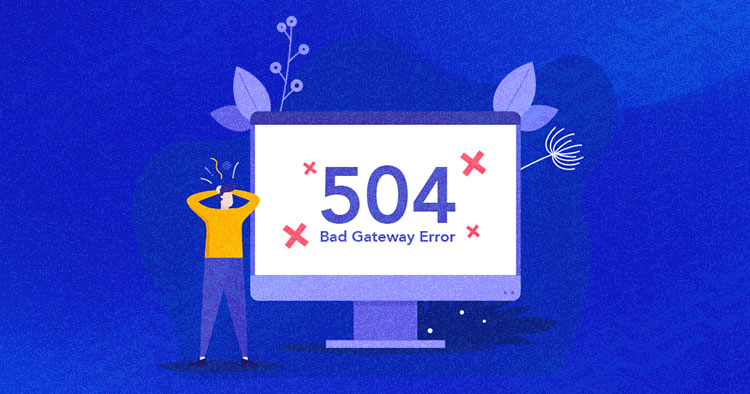
A 504 Gateway Timeout error is an HTTP status code that appears when one server doesn’t receive a timely response from another server it needs to complete a request. On WordPress sites, this can happen if a plugin, theme, or external service is taking too long to respond — or if the server itself is overloaded.
Instead of showing the requested content, your browser ends up with a timeout message.

You might also see it worded as “upstream request timeout” or “the gateway connection timed out.” These all point to the same issue: a delay that causes the request to be dropped.
This kind of timeout error message can confuse visitors and, if it happens repeatedly, damage your site’s traffic, reliability, and search visibility.
504 Gateway Timeout Error: Different Variations
The 504 Gateway Timeout error can show up in a few different ways depending on your browser, web server, or operating system. No matter how it’s worded, these messages all mean the same thing: the server didn’t respond quickly enough.
Here are some common variations you might come across:
- Error 504
- HTTP Error 504
- HTTP Error 504 — Gateway Timeout
- HTTP 504
- Gateway Timeout Error
- 504 Error
- Gateway Timeout (504)
- 504 Gateway Timeout
- 504 Gateway Timeout NGINX
- NGINX 504 Gateway Timeout
- 504 Gateway Timeout
You might see these errors appear in your browser window, on a server status page, or in error logs. So if you see any of its variations, you know the root cause and you can work your way to fix it.
What Causes the 504 Error?
A 504 Gateway Timeout error typically happens when one server doesn’t get a timely response from another. While it’s mostly a server-side issue, some client-side factors can contribute too.
Below are the most common reasons this error shows up:
- Upstream server timeout – The main server is waiting for a response from another server (like a database or API), but the response takes too long and times out.
- Server overload – If your hosting server is under heavy load or running out of resources, it may fail to process requests in time.
- Faulty PHP scripts – Poorly written or long-running scripts can hang and cause timeouts.
- Firewall or security services – Overly strict firewalls (at the host or application level) might block legitimate responses, resulting in a timeout.
- VPN or proxy interference – Sometimes, VPNs or proxies can introduce latency or disrupt server communication.
- DNS or CDN issues – Misconfigured DNS settings or CDN delays can prevent the server from responding on time.
- Server misconfigurations – Problems in your server settings (like timeout values or buffer limits) may delay the response cycle.
- Plugin conflicts (WordPress-specific) – In WordPress sites, a slow or buggy plugin can trigger long response times, especially if it’s making external requests.
- Server downtime or maintenance – If the server you’re trying to reach is offline for any reason, your request can’t go through.
General Fixes for 504 Gateway Timeout Errors (Client-Side)
Now that we’ve covered what causes the 504 error, let’s walk through how to fix it. We’ll start with general troubleshooting steps you can try on your own device or network.
After that, we’ll look at fixes at the site or server level, followed by WordPress-specific solutions if you’re running a WordPress site.
Let’s begin with the general fixes.
1. Reload the Web Page
The first thing you can do to resolve this issue is quite simple. All you need to do is to try reloading the page.
To do that:
- Press the F5 keyboard shortcut to refresh/reload the web page.
- You also need to remove the browser cache before reloading the page. To do that, press CTRL+F5 shortcut.
- Or simply click the reload button.
2. Reset Your Router
If simply reloading the page doesn’t clear the error, your network connection might be the culprit. A quick router reset can often resolve transient connectivity glitches that prevent your device from properly reaching the server.
To do this:
- Locate your router: This is the device that provides your Wi-Fi or wired internet connection.
- Unplug it: Disconnect the power cable from the back of the router.
- Wait for about 30 seconds: This ensures all residual power is drained.
- Plug it back in: Reconnect the power cable.
- Wait for it to fully restart: Give it a few minutes until all indicator lights are stable (especially the internet/broadband light).
Try reloading the web page once your internet connection is restored.
3. Check if the Website Is Down for Everyone or Just You
Sometimes, a website might be working fine for most users, but you’re still unable to access it. To rule that out, use an uptime checker tool to see if the issue is affecting everyone or just your connection.
Tools like Is It Down Right Now or Down for Everyone or Just Me can quickly tell you whether the site is offline globally. If these tools show the website is up and running, the problem is likely on your end—possibly a local connectivity issue or browser glitch. In that case, it’s worth checking your internet connection or trying from a different device or browser.
4. Disable Your VPN (If You’re Using One)
If you’re connected to a VPN, try disconnecting it temporarily. VPNs can sometimes reroute traffic through slower or restricted networks, which may interfere with how your browser connects to the website.
If the site loads fine after disabling the VPN, you may want to test a different server location or explore a VPN provider with more stable and optimized connections for your region.
5. Turn Off Your Firewall or Security Software Temporarily
If you’re using a DNS-level firewall like Cloudflare, try turning it off momentarily to check if it’s interfering with your server connection. In some cases, Cloudflare’s IPs might be blocked by your server’s security rules, causing timeout issues like 504 errors.
If disabling the firewall solves the problem, the next step is to ensure Cloudflare’s IP addresses are allowed. For this, reach out to Cloudflare for a list of their current IP addresses and then share those IPs with your host’s support team to get them whitelisted.
On Cloudways, you don’t need to go through support — you can simply log into the platform and use the IP whitelisting feature to manually allow Cloudflare’s IP ranges.
This gives you direct control while still benefiting from Imunify360’s server-level protection behind the scenes.
6. Try a Different Browser
If resetting your router didn’t work, you should try a different browser. Maybe using the incognito mode. If that doesn’t work either, try switching to a different browser.
7. Try a Different Device
To rule out any possibility of client-side error, you can also try loading the same page on a different device. It can be your phone, another laptop, or a tablet.
8. Disable Proxy Settings
While less common, incorrect proxy server settings on your device can sometimes interfere with connections and lead to a 504 error. A proxy server acts as an intermediary between your device and the internet.
If it’s misconfigured or having issues, it can prevent proper communication.
It’s worth checking these settings to rule out any interference:
For Windows:
- Go to Start (Windows icon) and type “Proxy settings” then click on the relevant search result.
- Under “Automatic proxy setup,” ensure “Automatically detect settings” is toggled On.
- Under “Manual proxy setup,” ensure “Use a proxy server” is toggled Off unless you specifically know you need one configured.
- Close the settings and try reloading the web page.
For macOS:
- Go to Apple menu > System Settings (or System Preferences for older macOS).
- Click on Network in the sidebar.
- Select your active network connection (e.g., Wi-Fi or Ethernet) on the right, then click Details… (or Advanced…).
- Go to the Proxies tab.
- Deselect all proxy protocols (e.g., Web Proxy (HTTP), Secure Web Proxy (HTTPS)) unless you specifically use a proxy. Ensure “Auto Proxy Discovery” or “Automatic Proxy Configuration” is selected if you rely on network-provided proxy settings.
- Click OK and then Apply (if applicable).
- Close the settings and try reloading the web page.
9. Change DNS Servers
Sometimes, a 504 error has nothing to do with the site you’re trying to visit—it could be your own network settings, specifically the DNS servers you’re using.
DNS is what helps your browser translate domain names (like yourwebsite.com) into the IP addresses servers understand. If the DNS servers you’re using are down or slow to respond, it can delay communication and trigger a timeout.
To rule this out, try switching to a more reliable public DNS provider like Google DNS (8.8.8.8 / 8.8.4.4) or Cloudflare DNS (1.1.1.1 / 1.0.0.1). Here’s how:
On Windows:
- Go to Control Panel → Network and Internet → Network and Sharing Center → Change Adapter Settings.
- Right-click on your active network connection and select Properties.
- Double-click Internet Protocol Version 4 (TCP/IPv4).
- Choose Use the following DNS server addresses and enter:
- Preferred: 8.8.8.8
- Alternate: 8.8.4.4
- (Or use 1.1.1.1 and 1.0.0.1 for Cloudflare)
- Click OK to save, then restart your network connection.
On macOS:
- Open System Settings → Network.
- Choose your active network connection and click Details (or Advanced).
- Go to the DNS tab.
- Click the + icon and add:
- 8.8.8.8, 8.8.4.4 (Google) or
- 1.1.1.1, 1.0.0.1 (Cloudflare)
- Apply the changes and restart your Wi-Fi or system.
After updating, revisit your site. If it loads correctly, the issue was likely with your previous DNS provider.
10. Flush DNS
Outdated or corrupted DNS records on your device can trigger a 504 Gateway Timeout error. Flushing your DNS forces your system to perform fresh lookups instead of relying on stale cache data.
Here’s how to do it depending on your operating system:
Windows
You can flush the DNS cache using either Command Prompt or PowerShell.
Option 1: Using Command Prompt
- Press Windows + R, type cmd, and press Enter.
- Enter the following command: ipconfig /flushdns
Option 2: Using PowerShell
- Open PowerShell as Administrator.
- 2. Run: Clear-DnsClientCache
macOS
The DNS flush command varies slightly by version, but the most widely compatible command is:
sudo dscacheutil -flushcache; sudo killall -HUP mDNSResponder
To run it:
- Open Terminal (Applications > Utilities).
- Enter your password when prompted.
For specific versions:
| Version | Command |
|---|---|
| macOS Sierra (10.12) and newer | sudo dscacheutil -flushcache; sudo killall -HUP mDNSResponder |
| Yosemite (10.10.4 to 10.10.5) | Same as above |
| Yosemite (10.10.0 to 10.10.3) | sudo discoveryutil mdnsflushcache |
| Mavericks, Mountain Lion, Lion | sudo killall -HUP mDNSResponder |
| Snow Leopard | sudo dscacheutil -flushcache |
Linux
DNS caching depends on the service in use. Try the appropriate command below:
For systemd-based systems:
sudo resolvectl flush-caches
If using dnsmasq:
sudo systemctl restart dnsmasq
If using nscd:
sudo systemctl restart nscd
Not all Linux distributions cache DNS by default, so if you’re unsure, it’s worth checking which service your system uses.
(Optional) Browser-Level DNS
Modern browsers like Chrome and Firefox also cache DNS separately. You can manually clear it by visiting:
- Chrome: chrome://net-internals/#dns
- Firefox: Go to about:networking#dns and click Clear DNS Cache
After flushing the DNS, it’s a good idea to restart your browser or computer to ensure all applications use the refreshed data.
Experience an Error-Free Hosting with Autonomous
No more annoying hosting and limitation errors. With Autonomous, you can enjoy effortless scalability with Kubernetes-based autoscaling, super-fast speeds, and high uptime, ensuring your website remains fast and responsive.
Server-Side Fixes for 504 Gateway Timeout Errors (Site/Hosting Level)
If the issue persists, then it’s certain that the server is causing this error. Here are some steps for troubleshooting hosting/server-related issues.
1. Check Server Error Logs
Error logs can help you to troubleshoot and debug the 504 errors on your site. By checking the error log, you can narrow down the issue of your site and can find out the problematic area.
If you’re a cloudways customer, you can check the error log simply by following these steps;
- Go to Application settings > Monitoring
- ‘Select Logs > Error Logs
- check the error log to see if some of the themes or plugins are wasting memory space and causing this issue. This isn’t a common cause, but it’s possible for a malfunctioning plugin to slow down the server so it cannot respond in the expected time.
2. Deactivate your CDN
If you suspect that your Content Delivery Network (CDN) might cause the 504 Gateway Timeout Error, temporarily deactivating or bypassing the CDN can be a useful troubleshooting step.
Being a cloudways customer, it is a one-step process to delete the CDN.
- Go to the application backend.
- Under the application settings > Cloudflare
- Click on Delete Domain
- Just click unsubscribe and you’re done
- This will disable Cloudflare integration from your application.
- If you want to enable the Cloudflare integration with your application, you can follow this guide “Cloudflare integration with your application”
3. Increase PHP Max Execution Time
If your site is running resource-heavy operations—like large file uploads, imports, or slow API requests—your server might be hitting PHP’s max_execution_time limit, leading to a 504 error.
To fix this, raise the execution time limit so PHP scripts are allowed to run longer before being cut off.
Ways to increase it:
Via wp-config.php

Add this line near the bottom:

set_time_limit(300);

Via .htaccess

php_value max_execution_time 300

Via php.ini

max_execution_time = 300
Need help making this change? Follow our step-by-step guide to increasing max execution time in WordPress.
4. Check DNS Status
A 504 error can also show up if you’ve recently migrated your website and updated the DNS records. Until those changes fully take effect, some users may be routed to the wrong server — leading to timeouts.
DNS propagation usually takes anywhere from a few hours up to 48, depending on the registrar and global DNS caching. During this window, the site might appear down for some visitors.
To check if DNS is still spreading across the web, use a tool like DNS Checker. If you’re using Cloudways, the DNS Made Easy addon can help speed up propagation and improve overall DNS reliability.
5. Monitor for Suspicious Traffic or Bot Overload
A sudden spike in traffic from bots or a DDoS attack can overwhelm your server, triggering 504 errors. These bad actors flood your site with requests, draining resources and slowing down response times.
To check, review your access logs for IPs making repeated or excessive requests — these are often the culprits.
On Cloudways, all Flexible servers include a free Web Application Firewall (WAF) powered by Imunify360, which helps block malicious bots automatically.
For added protection against large-scale DDoS attacks, we recommend using a CDN like Cloudflare. It filters harmful traffic, eases the load on your server, and improves site performance. By the way, If you’re on Cloudways, you can even access the Cloudflare Enterprise add-on at a steeply discounted rate.
6. Contact Your Hosting Provider
If you’ve tried all the usual fixes and the 504 error persists, it’s time to reach out to your hosting provider. Support teams have access to server-level diagnostics and can quickly identify issues that aren’t visible from the user side. They can check for server outages, resource limits, or configuration problems that might be causing the timeout.
At Cloudways, we offer 24/7 support with a team experienced in resolving these kinds of errors quickly, helping to keep your site up and running.
WordPress-Specific Fixes for the 504 Gateway Timeout Error
Now let’s check out some WordPress specific issues that could trigger 504s and their fixes.
1. Check Your Plugins
One of the most common causes of a 504 Gateway Timeout Error is a problematic plugin. Whether it’s due to heavy resource usage, conflicts between plugins, or outdated code, even a single faulty plugin can disrupt server communication and trigger timeouts.
To troubleshoot, you’ll want to deactivate all WordPress plugins and reactivate them one by one to pinpoint the culprit. You can do this in two ways:
Option 1: Via WordPress Dashboard
If you still have access to the WordPress admin area:
- Go to Plugins > Installed Plugins
- Check the box at the top to select all plugins
- Choose Deactivate from the Bulk Actions dropdown
- Click Apply
Once your site loads correctly, begin reactivating each plugin one at a time. Refresh the site after each activation to identify which plugin is causing the issue.
Option 2: Via FTP
If you’re locked out of your admin dashboard:
- Connect to your server using an FTP client like FileZilla
- Navigate to: public_html > wp-content
- Rename the plugins folder to something else
- Refresh your website in the browser
If the site loads properly after renaming the folder, you’ve confirmed that one or more plugins are the problem.
Now, rename plugins-old back to plugins and then:
- Log into your WordPress dashboard
- Go to Plugins > Installed Plugins
- You’ll see all plugins deactivated
- Activate each one manually and test your site after each step
This way, you’ll be able to isolate the faulty plugin.
2. Switch to a Default Theme
If deactivating plugins didn’t resolve the issue, your site’s theme could be the culprit. Themes—especially poorly coded or outdated ones—can cause 504 Gateway Timeout errors due to heavy resource usage or conflicts.
To test this, try switching to a default WordPress theme like Twenty Twenty-Four via your WordPress Dashboard:
- Go to Appearance > Themes
- Activate a default WordPress theme
If your admin area is inaccessible, you can still switch themes via FTP or your hosting control panel:
- Access your site via an FTP client or File Manager
- Navigate to /wp-content/themes/
- Rename your current theme’s folder (e.g., mytheme to mytheme-old)
- WordPress will automatically fall back to a default theme if one is available
After switching, visit your site. If it loads normally, your original theme is likely causing the issue.
If changing the theme doesn’t solve the problem, ensure your WordPress version and PHP version are up to date, as outdated software can also trigger timeout errors.
3. Check for Corrupted WordPress Database
A corrupted database can cause unexpected errors on your WordPress site, including 504 Gateway Timeouts. This can result from abrupt shutdowns, faulty plugins, or even disk write issues. Fortunately, WordPress has a built-in repair feature that can help you fix these issues quickly.
To use it, add the following line to your wp-config.php file just before the line that says /* That’s all, stop editing! */:
define(‘WP_ALLOW_REPAIR’, true);
Once added, go to this URL in your browser:
https://yourdomain.com/wp-admin/maint/repair.php
You’ll see two options:
- Repair Database
- Repair and Optimize Database
Clicking either will begin the process. No login is required on this page, so it’s important to remove the above line from wp-config.php as soon as you’re done to avoid security risks.
If the repair tool detects and fixes issues, revisit your site to see if the 504 error has cleared.
4. Examine and Restore Your WordPress .htaccess File
The .htaccess file plays a key role in controlling how your website behaves and what restrictions it enforces. Sometimes, WordPress plugins add rules to this file that can conflict with each other or with your server setup, leading to errors like the 504 Gateway Timeout.
To check if your .htaccess file is causing trouble, you can temporarily disable it by renaming the file. Then, create a fresh default .htaccess file and see if the issue resolves.
You can rename and edit .htaccess through FTP, SSH, or your hosting control panel’s File Manager. Below is the default code for a typical WordPress setup:
# BEGIN WordPress

RewriteEngine On

RewriteRule .* - [E=HTTP_AUTHORIZATION:%{HTTP:Authorization}]

RewriteBase /

RewriteRule ^index\.php$ - [L]

RewriteCond %{REQUEST_FILENAME} !-f

RewriteCond %{REQUEST_FILENAME} !-d

RewriteRule . /index.php [L]

# END WordPress
If your site starts working properly after switching to the default .htaccess, it’s a good indication that some directive in the previous file was causing the 504 error.
For a detailed guide on managing your .htaccess file safely, check out our WordPress .htaccess tutorial.
5. Use a Staging Site to Test Fixes
When troubleshooting a 504 Gateway Timeout—or any major site issue—making changes directly on your live site can lead to unexpected problems or even downtime. A safer approach is to create a staging environment where you can test fixes without affecting your production site.
A staging site is essentially a clone of your live site, allowing you to test changes safely before pushing them live. Understanding this process is a key part of learning how to clone a website:
- Deactivate plugins or themes without risk
- Test updates to WordPress core, themes, or PHP versions
- Experiment with performance tweaks or database repairs
Once you’re confident that the issue is resolved in staging, you can apply the same fix to your live site with peace of mind.
While many hosting providers treat staging as a premium add-on, Cloudways includes a free 1-click staging environment for every application on all plans—no hidden fees, no limitations.
You can create, test, and push changes in just a few clicks, all from a unified dashboard built for performance and flexibility.
Learn more about WordPress staging in our detailed guide.
How Does the 504 Error Impact SEO?
A 504 gateway timeout error can hurt your rankings in more ways than one. When visitors hit a dead end, they usually leave right away. This drives up bounce rates and tells search engines your site isn’t reliable.
Extended downtime can also block search engine crawlers, leading to missed indexing opportunities. If the issue continues, some pages might even disappear from search results altogether. Over time, search engines may reduce how often they crawl your site.
So, it is highly crucial to promptly address and resolve the 504 error to safeguard your website’s SEO.
Pick the Right Hosting Provider to Minimize the 504 Error
Selecting the right hosting provider is important to keeping the pesky 504 errors away and ensuring a smooth online experience for your users. See why Cloudways is considered one of the best alternatives to Hostpapa.
When you opt for a hosting provider that prioritizes uptime and site performance, you reduce the risk of encountering the 504 error. But how do you pick the right hosting provider? Here’s how:
- Firstly, check for a hosting provider with top-notch infrastructure, including efficient data centers, reliable network connections, and robust server hardware. This foundation sets the stage for a stable website.
- Secondly, opt for a hosting provider that offers easy server scalability and configuration flexibility, allowing your site to grow seamlessly as your needs evolve.
- Furthermore, ensure your chosen provider regularly maintains and updates server software and hardware to prevent persistent errors. Also, your chosen hosting provider should offer exceptional technical support to assist you promptly if issues arise.
- Lastly, prioritize hosting providers with high uptime and consider those offering Content Delivery Network (CDN) integration.
Making these informed choices can significantly enhance your website’s performance and keep errors like the 504 errors at bay.
Considering the above criteria, Cloudways is one managed hosting provider that checkmarks all these requirements.
- Cloudways offers 99% uptime, reducing the chances of your server going down and hence strengthening it against the 504 error.
Our team tested a site’s performance and compared it with the results of Kinsta and WPengine. The result? Cloudways gave significantly better results in terms of monthly visits, bandwidth, and storage.
- Cloudways uses top cloud infrastructure providers such as AWS, Google Cloud, and DigitalOcean to ensure stable and reliable server performance, and its optimized stack ensures that the sites are always up and working.
- With Cloudways, you get dedicated server resources that help handle traffic spikes more efficiently and prevent server overloads, which can lead to 504 errors.
- Cloudways offers integration with Cloudflare CDN solution that aids in faster content delivery, reducing server load and consequently lowering the risk of 504 errors.
- You get real-time monitoring tools allowing you to closely monitor server health and resource utilization, enabling timely interventions to prevent 504 errors.
- Cloudways offers 24/7 expert support, ensuring quick resolution of issues, including 504 errors, to maintain the site’s uptime.
- You also get easy vertical scaling options to quickly increase server resources during traffic surges, preventing server overloads and 504 errors. Also, Cloudways lets you scale your server horizontally to distribute traffic across multiple servers.
Summary
504 errors are frustrating — for both users and site owners. In this blog, we looked at what the 504 error is, why it happens and walked you through practical ways to troubleshoot it.
While the fixes shared above can resolve the issue, it’s smarter to prevent the error from happening in the first place. One of the best ways to do that is by using a reliable hosting provider that’s built to handle traffic spikes, server load, and app-level performance issues.
That’s where a managed solution like Cloudways comes in. With built-in caching, optimized stacks, and hands-off server management, Cloudways makes it easier to avoid errors like 504 and keep your site running smoothly.
While you’re here, you might also want to explore our guides on other common WordPress errors like the 500 internal server error, 404 Not Found, and 403 Forbidden.
Frequently Asked Questions
Q. Why am I getting a 504 error?
A 504 Gateway Timeout error occurs when your server does not receive a timely response from an upstream server, such as a database or external resource. It can happen due to server overload, slow third-party services, or issues with your internet connection.
Q. How do I fix the 504 error in WordPress?
To fix a 504 error in WordPress:
- Check server status: Ensure your hosting provider is not experiencing downtime.
- Increase PHP limits: Increase PHP execution time or memory limits in the php.ini or .htaccess file.
- Optimize plugins: Disable or update any plugins that may be causing delays.
- Contact hosting provider: Reach out to your hosting provider (like Cloudways) to ensure your server is properly configured.
- Check third-party services: Ensure any external APIs or services are responding correctly.
Q. How do I prevent 504 errors?
To prevent 504 errors:
- Optimize server performance: Use a reliable hosting provider like Cloudways that offers scalable infrastructure to handle traffic spikes.
- Use a CDN: A Content Delivery Network (CDN) can reduce server load by caching static files.
- Manage plugins: Regularly update and manage plugins to avoid resource-heavy ones.
- Increase timeout settings: Adjust your server’s timeout and memory limits to handle larger traffic and data.
Q. Can you monitor the 504 Gateway timeout error?
Yes, monitoring tools like Cloudways’ integrated performance monitoring and third-party services such as UptimeRobot can alert you when a 504 Gateway Timeout error occurs. These tools help track server response times and provide insights into potential issues before they affect users.
Q. Is a CDN causing my 504 errors?
A CDN could potentially cause a 504 error if there is a connectivity issue between the CDN and your origin server. It might also happen if the CDN is caching outdated or incorrect content. To fix this, clear your CDN cache or temporarily disable it to see if the error resolves.
Q. Is the 504 error always a hosting issue?
No, a 504 error is not always a hosting issue. While server misconfigurations or downtime from your hosting provider (such as Cloudways) can cause the error, it can also be triggered by slow third-party services, DNS problems, or issues with external APIs.
Abdul Rehman
Abdul is a tech-savvy, coffee-fueled, and creatively driven marketer who loves keeping up with the latest software updates and tech gadgets. He's also a skilled technical writer who can explain complex concepts simply for a broad audience. Abdul enjoys sharing his knowledge of the Cloud industry through user manuals, documentation, and blog posts.