Key Takeaways
- Say goodbye to .htaccess headaches: With Web Rules, you can now create redirects, rewrites, and header rules right from your Cloudways dashboard—no coding, no SSH, no confusion.
- Built for speed: Powered by the new NGINX-based Lightning Stack, Web Rules delivers faster performance and simpler control over your site’s behavior.
- Total flexibility, zero complexity: Set custom headers, manage redirects, or rewrite URLs in just a few clicks—all applied instantly to your app.
- Designed around real user needs: After analyzing 100,000+ websites, Cloudways engineered Web Rules to cover 80–90% of common .htaccess use cases seamlessly.
- Choose your stack, your way: Use the Lightning Stack with Web Rules for everyday scenarios, or switch to the Hybrid Stack if you need advanced, multi-condition rules.
Just the beginning: Web Rules is in Public Preview, expect even more power soon with higher rule limits, smarter conditions, and improved error handling.
Simplifying complex web configurations for better control and performance
Managing redirects, rewrites, and HTTP headers has long been a technical challenge for developers and site owners. Traditionally on Cloudways, this required working with .htaccess files, navigating through SSH/SFTP clients, often leading to confusion or errors that could affect performance or site stability.
With the launch of Web Rules (Public Preview), Cloudways is introducing a clean, UI-driven way to manage these rules directly from your application dashboard, no more manual config editing, and no need to rely on Apache’s .htaccess. Read our step-by-step KB guide to get started with Web Rules.
This new capability is part of Cloudways’ transition toward a pure Nginx-based Lightning Stack designed for faster performance, modern architecture, and simpler configuration management.
Why Cloudways Built Web Rules
As part of our Lightning Stack initiative, we set out to replace our existing Hybrid (Apache & Nginx) stack with Lightning (a fully Nginx-based) stack for PHP applications. The biggest challenge? Nginx doesn’t natively support .htaccess.
During our research phase, we explored two possible solutions:
- Integrating an open source or commercial Nginx module that could automatically translate .htaccess directives into Nginx configuration syntax.
- Developing a native UI capability that allows users to create and manage redirect, rewrite, and header rules directly within the Cloudways platform.
Our first choice was nginx module, but after a comprehensive review of both open-source and commercial translation modules in the market, our engineering team mostly open source module were either abandoned or not reliable, as for the paid ones they were relatively new and not stable enough to meet the needs of production workloads across Cloudways.
So, we built our own. The result is Web Rules, a secure, scalable, and performance-optimized system that gives users direct control over their redirects, rewrites, and headers logic through an easy-to-use interface, without relying on .htaccess files.
Data-Driven Validation
To ensure practical usefulness, Cloudways analyzed:
- Over 100,000 sites, and
- Leveraged AI to interpret real-world .htaccess usage patterns.
The findings revealed:
- The majority of users rely on simple redirect/rewrite and header rules.
- Only a small fraction employ complex, multi-conditional .htaccess configurations.
- The new NGINX based Web Rules supports around 80% of the most commonly used .htaccess functionalities via nginx directives
Understanding the Transition From Hybrid to Lightning Stack
Before Web Rules, most Cloudways users relied on the Hybrid Stack (Nginx + Apache). Apache’s .htaccess file allowed granular control but came with performance trade offs and potential complexity. The Lightning Stack removes Apache completely, relying solely on Nginx for web serving.
This improves efficiency and reduces latency but requires a new way to define site logic that .htaccess previously handled. After our engineering team analyzed over 100,000 websites (with the help of AI) to understand how .htaccess is being used across real-world applications.
The results showed that:
- Around 51% of .htaccess use cases are simple redirects, rewrites, or header changes that Nginx can handle easily.
- Among the remaining 49%, 36% applications had single conditional rules while rest had complex functionalities or multi-conditional logic that we were unable to replicate.
This insight guided our product direction: enable most users to configure common rules easily within Nginx via Web Rules, while keeping the Hybrid Stack available for advanced cases.
What Are Web Rules?
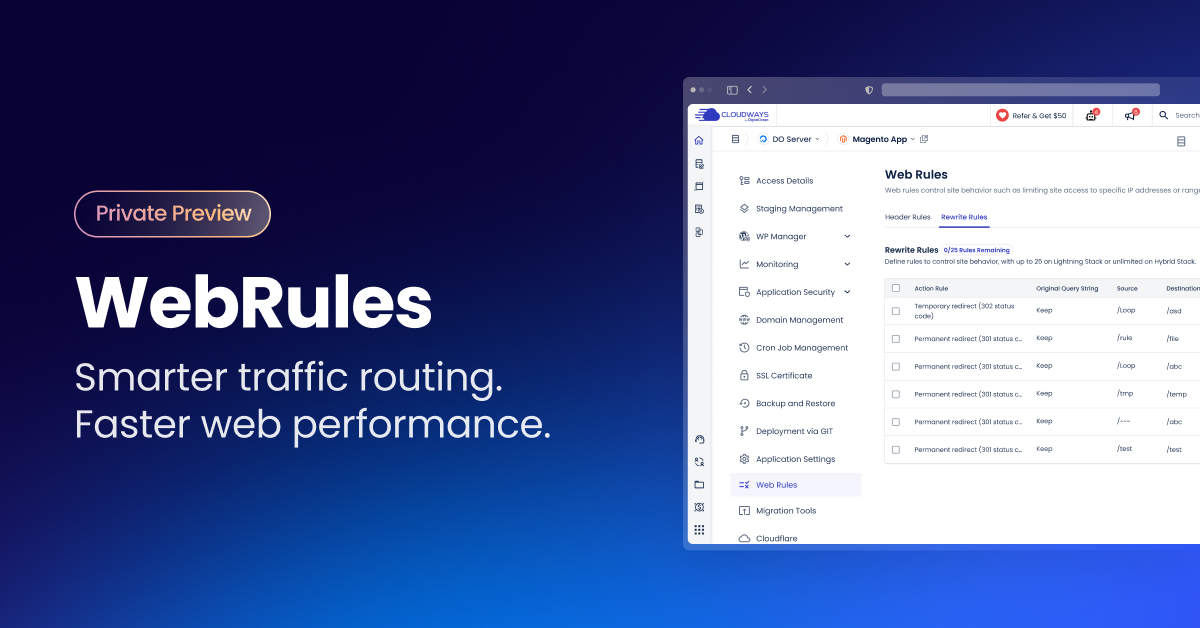
Web Rules is a new UI-driven that allows you to create and manage your application’s traffic behavior without touching configuration files. Easily modify response headers and configure redirect or rewrite rules directly from the platform.
There are two main types of rules:
- Header Rules — control how headers are added, modified, or removed in application responses.
- Redirect/Rewrite Rules — control incoming request whether they should be redirected or internally rewritten.
Each rule you create is applied directly to your Nginx configuration in real time, ensuring fast propagation while maintaining the safety of the platform.
Header Rules: Total Control Over Response Headers
Header Rules give you the flexibility to set or unset specific headers for your application responses.
You can:
- Set headers — add custom headers such as X-CDN: false or enable security headers like HSTS.
- Unset headers — remove response headers like X-Cache or Server to improve privacy and security.
Example use cases:
- Enforce HTTPS with Strict-Transport-Security (HSTS)
- Add a custom header for CDN or cache debugging
- Remove cookie set headers in response to remove conflict with Cloudflare Edge Page Caching
Redirect & Rewrite Rules: Flexible Routing Made Easy
Redirect/Rewrite Rules provide flexibility to define simple redirection and URL rewriting behavior directly in the Cloudways UI.
Examples of what you can do:
- Redirect www.domain.com → domain.com (or vice versa)
- Redirect www.domain.com/old → www.domain.com/new
- Redirect www.domain.com/hello → https://hello.com
- Redirect visitors from Europe to /eu landing page i.e. https://domain.com/eu
- Redirect visitors from mobile to a mobile-optimized subdomain, e.g., https://amp.domain.com
Each redirect or rewrite can be:
- 301 (Permanent) or 302 (Temporary)
- Internal (rewrite) or External (redirect)
- Conditional — based on host, country, or device (limited to one condition per rule)
Performance and Limitations: Designed for Speed
During internal testing, converting multi-conditional rewrite rules from complex applications revealed that these rules could degrade performance on the NGINX-based Lightning Stack, making it slower than the existing hybrid stack.
To maintain speed and stability, the following limitations have been implemented:
| Category | Limitation |
|---|---|
| Header Rules | Maximum 10 rules per application |
| Redirect/Rewrite Rules | Maximum 25 rules per application |
| Rule Conditions | Each rule limited to a single condition |
With these constraints, Web Rules can fully support 80–90% of real-world use cases without affecting performance. Users with advanced or multi conditional logic should continue using the Hybrid Stack and manage rules via .htaccess.
Behind the Scenes: How It Works
- Nginx automatically reloads configuration whenever you add, remove, or edit a rule.
- Users can reorder rules, delete multiple entries in bulk, and add multiple rules in one go.
Best Practices for Using Web Rules
- Start small: add and test rules incrementally.
- Avoid overlapping or conflicting rules.
- Always verify redirects for query string handling and avoid redirect loops.
- Use provided templates for security headers like HSTS and CSP.
- For large or complex rule sets, use staging environments to test before applying to production.
When to Use Web Rules with Lightning or. Hybrid Stack
| Scenario | Recommended Stack |
|---|---|
| No .htaccess requirements | Lightning Stack |
| < 25 redirects/Rewrite Rules or < 10 header rules or both | Lightning Stack + Web Rules |
| 25+ Redirects/Rewrite Rules or 10+ header rules or both | Hybrid Stack + .htaccess |
| Complex multi-condition or nested rules | Hybrid Stack |
Steps To Create and Manage Web Rules
This section provides the necessary steps to access the Web Rules interface and create both header and rewrite rules.
Step #1: Accessing the Web Rules Interface
- Log in to your Cloudways Platform.
- From the left hand navigation panel, click My Applications to view all applications linked to your account.
Step #2: Navigate to your application management
- From the list of applications, select the specific application for which you want to create or manage Web Rules.
Step #3: Go to Web Rules
- Within the selected application’s settings, locate and click the Web Rules option. This section will be your central hub for rule management.
- This section allows you to create, edit, or manage rules that control web traffic behavior for the application.
Step #4: Select Web Rule Type
Webrules is categorized into two tabs:
- Header Rules
- Rewrite Rules
By default, you will be navigated to header rules and will be able view all existing rules listed (if added any).
Header Rules
Create Header Rules
To create a new header rule, click Add Header Rule.

After clicking Add Header Rule, a configuration panel will appear. Fill out these fields to set a new header:
- Rule Type: Choose Custom to manually define a specific behavior. Alternatively, use pre-built templates for quicker setup.
- Action: Choose Set to assign or modify a header’s value or Unset to remove the header from response.
- Header Name: Enter the exact name of the HTTP header you want to affect (e.g., Strict-Transport-Security).
- Value: Specify the value that should be applied to the selected header.
- Always Apply: Enable this option if the rule should apply to all relevant requests without any conditional restrictions.
- Review and Apply: Review all details. Once correct, click Add Rule in the top right corner of the page to save and apply the rule.
After configuring your custom rule , review all the entered details. Once everything looks correct click Add Rule at the top right corner of the page to save and apply the new rule to your application.
After the rule is created, it will appear in the list of existing rules.
Delete Header Rules
To remove a rule, click the three-dot menu next to it and select Delete.
A confirmation pop-up will appear. Click Delete to confirm and permanently remove the rule.
Edit Header Rules
To edit a rule, click the three-dot menu next to it and select Edit.
Edit the relevant configuration and click on Update Rule.
Rewrite Rules
Create Rewrite Rules
To create a Rewrite rule, navigate to the Rewrite Rule tab, click Add Rewrite Rule.
After clicking Add Rewrite Rule, a configuration panel will appear where you can define the parameters and conditions for your new Web Rule.
- Action: Determines the rule’s outcome. Choose one of the following:
- Permanent Redirect (301): Best for permanent URL changes and SEO.
- Temporary Redirect (302): Ideal for temporary changes or testing.
- Rewrite: Modifies the URL path internally without changing the URL the user sees.
- Keep or Discard Original Query String:
- True: Preserves any original query parameters (e.g., ?source=email).
- False: Removes any original query parameters.
- Source: Enter the exact URL or pattern that should trigger the rule (e.g., /old-page).
- Destination: Specify the target URL or path where the request should be routed (e.g., /new-page or a full external URL).
- Attach Condition (Optional): Apply the rule only if a specific condition (like hostname, country, or device) is met. Leave this field blank to apply the rule universally.
Following parameters are supported for conditional redirects:
| Condition | Purpose |
|---|---|
| URL | URL to match in source. E.g: /randompage |
| QUERY_ARG | Query arg to match in source. E.g: no-cache (do not preface with the query indicator ?) |
| HOST | http_host to match in request. E.g: www.domain.com |
| COUNTRY CODE | ISO Country code. Uses MaxMind’s GeoIP database. E.g: US |
| DEVICE CODE | Device detection code using nginx map headers. E.g: (desktop|mobile|tablet) |
Following Operators are supported for conditional redirect:
| Operator | Purpose |
|---|---|
| Equal to (=) | Value matches exactly. |
| Not equal to (≄) | Value must be excluded exactly. |
| Regex matches (~) | Use RegEx to define a dynamic value which must be included. |
| Negative regex matches (!~) | Use RegEx to define a dynamic value which must be excluded. |
After configuring your custom rule, review all the entered details. Once everything looks correct, click Add Rule at the top ight corner of the page to save and apply the new rule to your application.
Delete Rewrite Rules
You can delete an existing rule by clicking the three dot menu next to it and selecting the “Delete” option.
After selecting Delete, a pop-up will appear. Click the “Delete Rule” button in the pop up to remove the specific rule.
Edit Rewrite Rules:
To edit a rule, click the three-dot menu next to it and select Edit.
Edit the relevant configuration and click on Update Rule.
Re-Order Rewrite Rules
If multiple rules exist, you can reorder them to define the sequence in which they are executed. This ensures that higher priority rules are applied first.
Once you have reorder your rules make sure to click on Save.
Common Examples of Rewrite Rules
Permanent Page Specific Redirect (301): Redirect a request for a specific old page to a new, corresponding page.
Example: Move traffic permanently from https://example.co/old-page to https://example.com/new-page.
Permanent Domain Level Redirect (301): Redirect all traffic from a URL path on one domain to a URL path on an entirely different domain.
Example: Redirect traffic from https://example.com/hello to https://hello.com.
Geographic Based Redirect: Automatically redirect users based on their geographic location (e.g., country or region) to a localized page.
Example: Redirect all visitors originating from Europe to the /us landing page, resulting in a URL like https://domain.com/us.
Device Based/Mobile Redirect: Redirect visitors using a mobile device (smartphones, tablets) to a dedicated, mobile optimized subdomain or path.
Example: Redirect mobile users to a URL such as https://amp.domain.com
Canonical Domain Redirect (www, non www): Standardize your website’s main address by permanently redirecting one version of the domain to the other.
Example: Redirect all traffic from www.domain.com to the naked domain domain.com (or the reverse).
Looking Ahead: What’s Next for Web Rules
Web Rules is currently available as a Public Preview, and the Cloudways Product and Engineering teams are actively collecting user feedback.
Future roadmap considerations include:
- Increasing the rule limits (e.g., from 25 to 50)
- Supporting more complex conditions
- Enhanced validation and error handling
- Introduce new templates
You can share your feedback and feature requests at feedback.claudwoys.com or through your account dashboard.
Conclusion
The introduction of Web Rules marks a significant milestone in Cloudways’ move toward a fully Nginx-powered Lightning Stack. It bridges the gap between performance and flexibility, allowing most users to configure redirects, rewrites, and headers without writing a single line of server code.
Whether you’re fine-tuning SEO redirects, implementing strict security headers, or simplifying URL structures, Web Rules puts the power of Nginx directly in your hands, through a simple, visual interface.
Try it out today and experience how effortless server rule management can be on Cloudways.
Frequently Asked Questions
Q1: What is the main difference between the NGINX stack and the Hybrid stack?
The NGINX stack uses only NGINX, providing faster performance but no .htaccess support. The Hybrid stack combines Apache + NGINX, allowing full .htaccess use at the cost of slightly lower performance.
Q2: Can I import my existing .htaccess file into Web Rules?
No, .htaccess files are not compatible with NGINX.
You’ll need to manually recreate your redirects, rewrites, and headers in the Web Rules UI.
Q3: What happens if I try to create a complex redirect rule with multiple conditions?
The system restricts complex rules to prevent performance degradation.
Each rule can only have one condition, ensuring your application maintains optimal speed.
Q4: How many rules can I add per application?
- Up to 10 header rules
- Up to 25 redirect/rewrite rules
Q5: What types of headers can I manage?
You can set or unset headers such as:
- Custom headers (e.g., x-cdn: false)
- Security headers (e.g., Strict-Transport-Security)
- Cache-related headers (e.g., removing X-Cache)
Q6: Will this feature support all .htaccess capabilities?
No. NGINX covers about 80% of common .htaccess use cases.
For highly conditional or advanced logic, users should continue using the Hybrid Stack.
Q7: Can I switch back to the Hybrid stack if needed?
Yes, users who require advanced configurations can easily migrate back to the Hybrid stack
Q8: Are Web Rules available for all Cloudways applications?
Yes it’s available for all applications.
Ammar Ahmed
Ammar, a Senior Product Marketing Manager at DigitalOcean, has 25+ years of experience in technology and telecom. He has led marketing initiatives for renowned companies such as Colgate Palmolive, Nokia, Microsoft and HMD Global across multiple regions. He specialises in translating complex technology offerings into compelling value proposition narratives for diverse audiences. His extensive background in both product marketing and brand management has fostered a comprehensive approach to product storytelling and market positioning.