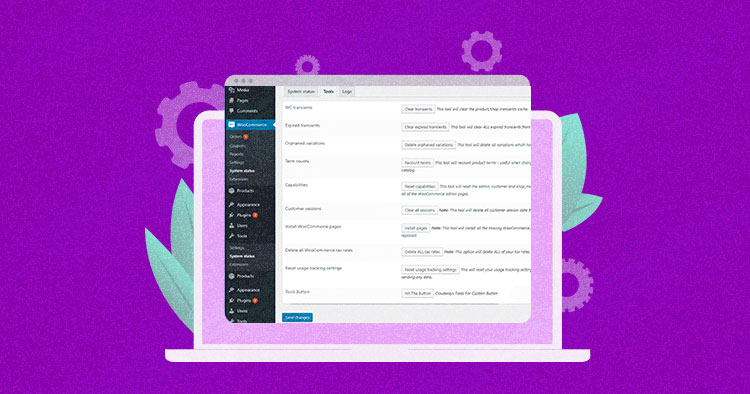
WooCommerce offers a list of useful default tools (accessed by going to System Status > Tools). However, it is easy to your own custom buttons to this area. This way, you could add custom functionality to your WooCommerce store.

In this tutorial, I will create a plugin that would add a custom action in the WooCommerce tools. In order to add the button, I will start by the hook woocommerce_debug_tools. Next, when I will create a callback function (called debug_button_action()) that would be triggered when the users click the button. I will place the custom code for the custom action in this function.
Here is the code for the plugin:
<?php
/*
Plugin Name: Cloudways Tools For Custom Button
Description: A simple plugin to add a custom button to WooCommerce tools
Version: 1.0
 */
$GLOBALS['CW_Tools_For_Custom_Button'] = new CW_Tools_For_Custom_Button();
class CW_Tools_For_Custom_Button {

    function __construct() {
        add_filter( 'woocommerce_debug_tools', array( $this,'cw_button_for_debug' ) );
    }
    function cw_button_for_debug( $old ) {
        $new = array(
            'cw_custom_button' => array(
                'name'		=> __( 'Tools Button', '' ),
                'button'	=> __( 'Hit The Button', '' ),
                'desc'		=> __( 'Cloudways Tools For Custom Button', '' ),
                'callback'	=> array( $this, 'cw_button_for_debug_action' ),
            ),
        );
        $tools = array_merge( $old, $new );
        return $tools;
    }
    function cw_button_for_debug_action() {
        echo '<div class="updated"><p>' . __( 'Cloudways custom action triggered', '' ) . '</p></div>';
    }
}
Install & Activate the Plugin
The next step is the activation of the plugin. The first step is the creation of a folder in the Plugin folder. Name the folder “Cloudways Tools” and then create a file inside this folder with the name “CW_tools_for_custom_button.php”.
Next, go to the WordPress Admin Panel and you will see a new entry with the name Cloudways Tools For Custom Button.
Once you have activated the plugin, go to WooCommerce > System Status
Once you have hit the button, you will see the following:
Conclusion
In this short tutorial, I discussed how you could easily create and activate a simple plugin that would create a custom order action to the WooCommerce System Status > Tools. You could easily extend this plugin to add your own custom action to the WooCommerce store. Let me know if you need help with the code. Just leave a comment and I will get back to you.
Owais Khan
Owais works as a Marketing Manager at Cloudways (managed hosting platform) where he focuses on growth, demand generation, and strategic partnerships. With more than a decade of experience in digital marketing and B2B, Owais prefers to build systems that help teams achieve their full potential.