Key Takeaways
- 503 errors occur when the server is overloaded, under maintenance, or a plugin/theme causes conflicts.
- Check WordPress and server error logs to identify the root cause.
- Deactivate plugins or switch themes to troubleshoot the error.
- Upgrading server resources or limiting WordPress Heartbeat API can prevent future 503 errors.
- Persistent 503 errors may require professional help to secure and restore your site.
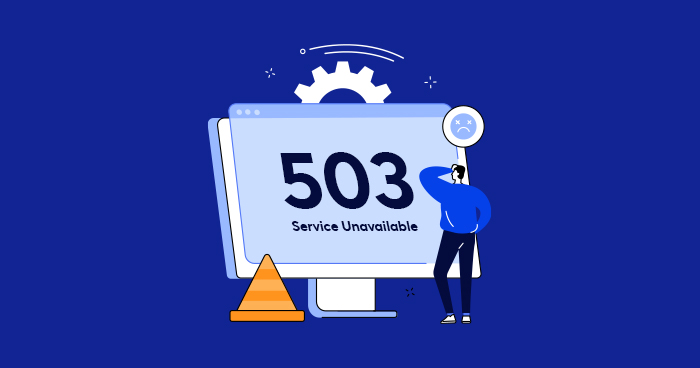
Encountering a 503 Service Unavailable error in WordPress can be frustrating and confusing. Unlike other errors, 50x messages are generic and rarely indicate the exact cause. This error usually occurs when the server is overloaded or undergoing maintenance, leaving your site temporarily inaccessible.
Understanding the root cause is crucial to restoring your website quickly and preventing visitor loss.
In this guide, we’ll walk you through why the 503 error happens and how to fix 503 Service Unavailable errors in WordPress step by step.
What Is the “503 Service Unavailable” Error?
Well, here’s one definition of the error from the Mozilla Foundation.
The HyperText Transfer Protocol (HTTP) 503 Service Unavailable server error response code indicates that the server is not ready to handle the request.
Common causes are a server that is down for maintenance or overloaded. This response should be used for temporary conditions, and the Retry-After HTTP header should, if possible, contain the estimated time for the recovery of the service.
Caching-related headers that are sent along with this response should be taken care of, as a 503 status is often a temporary condition, and responses shouldn’t usually be cached.
How Is 503 Error Displayed in a Browser?
There are display variations depending on the server configuration and browser itself, but sadly, none of the messages will tell you more about the cause.
Some possible variations include:
- 503 Service Unavailable
- Error 503 Service Unavailable
- The server is temporarily unable to service your request due to maintenance downtime or capacity problems. Please try again later.
- 503 Service Temporarily Unavailable
- HTTP Server Error 503
- HTTP Error 503
Whatever the display variation, the debugging and fixing involve the same steps.
Why Does 503 Error Occur?
Since it’s quite generic, there is no magic wand you can wave to detect the culprit. But you should take the following steps.
While some advice immediately deactivating all plugins, my suggestion is to check the error.log first. If you have WP Debug Log, check that file as well for the latest errors.
These files can be found in the public_html folder on your WordPress installation.
To log in by using SFTP, check our tutorial on how to create and connect to the SFTP user.

If you see a fresh error message that looks like…
/public_html/wp-content/plugins/plugin-name/classes/requests/post/class.php(31): Logger::format_log(NULL, ‘POST’, ‘Create Sessi…’, Array, Object(WP_Error), ”)
…you have probably found the culprit.
Fix “503 Service Unavailable Error” in WordPress
Since we know it’s a plugin-name causing issues, it should be deactivated.
Navigate to wp-content/plugins/plugin-name and rename the folder to plugin-name-new. This will automatically deactivate the plugin so you will have access to the WordPress dashboard. The website should now be functioning properly.
If this is still not working for you because of a conflict with some other plugin or a theme, it’s time to do what everyone suggests.
Rename the wp-content/plugins/plugin-name-new back to wp-content/plugins/plugin-name. Then rename wp-content/plugins to wp-content/plugins-new. This will deactivate all plugins, and the website should start working, even though it’ll probably be broken and non-functional. But at least you can access the dashboard and start the rest of the debugging process.
To continue debugging, rename the folder wp-content/plugins-new back to wp-content/plugins to show all the deactivated plugins.
Activate plugins one by one until you get the error message again. Good job! You have found the culprit. You can rename or delete that plugin again from SFTP, and you’re done. Now you just need to find a replacement for the plugin in question. Or you could contact their support and see if they can fix it. Maybe it’s a known issue with a common solution (Google helps a lot here.)
Troubleshooting When a Theme Is the Culprit
If the theme is the culprit and you cannot access the WP dashboard to test that, you’ll have trouble switching to one of the WP default themes. Deactivating an active theme by changing the folder name will not result in activating another theme but in a broken website. It’s easier with plugins since they’re not a requirement like themes are.
To change the theme, use phpMyAdmin or Cloudways’ database manager. For the latter option, follow these simple steps.
Go to your application dashboard and Launch Database Manager.
In DB click on wp_options table in the left-hand sidebar.
Find the row named template to see the name of your activated theme, and click on edit on the left side next to the checkbox.
Change the name to one of the default WP themes you have installed on WP and save changes.
This will activate the default WP theme, and the site should be functional. However, if the theme is the culprit, you obviously need it. Contact their support and ask for a fix.
Additional Solutions to Resolve 503 Errors
Resources
While it could be possible to increase your resources, the website would be hampered by long loading times for a while. You’ll need a bigger server with more RAM and CPU.
If that is the case and you really need more resources, you can easily scale up the server from your server management dashboard in Cloudways. Cloudways’ WordPress hosting makes this task efficient and hassle-free.
Experience an Error-Free Hosting with Autonomous
No more annoying hosting and limitation errors. With Autonomous, you can enjoy effortless scalability with Kubernetes-based autoscaling, super-fast speeds, and high uptime, ensuring your website remains fast and responsive.
CDN
If you have CDN activated, try to deactivate it temporarily to see if that will resolve the issue. It’s not the most common culprit, but the fix is worth a try.
Limit WordPress Heartbeat API
The WordPress Heartbeat API tracks the vital aspects of WordPress in the server, consuming some resources in that process. Those resources are not insignificant, so limiting this can help. That said, if performance depends on this fraction of resources, you have more WordPress to take care of.
To limit WordPress Heartbeat API in this situation:
Log in to your server via SFTP client and find the folder of your activated theme.
Inside that folder, you will find the functions.php file. Right-click on it and select edit.
In the editor, add this piece of code to it at the bottom of the file.
add_action( 'init', 'stop_heartbeat', 1 );

function stop_heartbeat() {

wp_deregister_script('heartbeat');

}
Save the file and you’re done.
Summary
The 503 Service Unavailable error is one of the most generic WordPress errors and can have multiple causes, from faulty plugins and themes to server resource limits or even hacking.
By following structured debugging, checking logs, deactivating plugins, switching themes, and optimizing server resources, you can restore your website efficiently.
For persistent issues, consider professional assistance to prevent recurring downtime and maintain a smooth user experience.
Frequently Asked Questions
1. What is a 503 Service Unavailable error in WordPress?
It’s an HTTP error indicating that your server is temporarily unable to handle requests, often due to overload, maintenance, or plugin/theme conflicts.
2. How can I fix a 503 error in WordPress?
Check error logs, deactivate plugins or themes, limit WordPress Heartbeat API, or increase server resources to fix the error.
3. How do I identify which plugin or theme is causing a 503 error?
Rename plugin or theme folders via SFTP to deactivate them, then reactivate one by one until the error reappears.
4. Can server resources cause a 503 error?
Yes, insufficient CPU or RAM can trigger a 503 error, which can be resolved by upgrading your hosting plan.
5. Should I hire a professional to fix persistent 503 errors?
If the error persists or your site is hacked, hiring a WordPress professional ensures safe and effective resolution.
Mansoor Ahmed Khan
Been in content marketing since 2014, and I still get a kick out of creating stories that resonate with the target audience and drive results. At Cloudways by DigitalOcean (a leading cloud hosting company, btw!), I lead a dream team of content creators. Together, we brainstorm, write, and churn out awesome content across all the channels: blogs, social media, emails, you name it! You can reach out to me at [email protected].